Valigara allows importing product data from existing Shopify listings.
Import from Shopify has two stages:
- Fetching - Valigara imports information from Shopify listings and analyzes it
- Import - Valigara creates products from the fetched information
Fetching
- Go to the Catalog page.
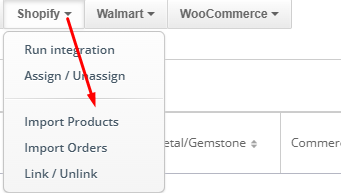
- In the Actions menu, select Shopify -> Import Products.
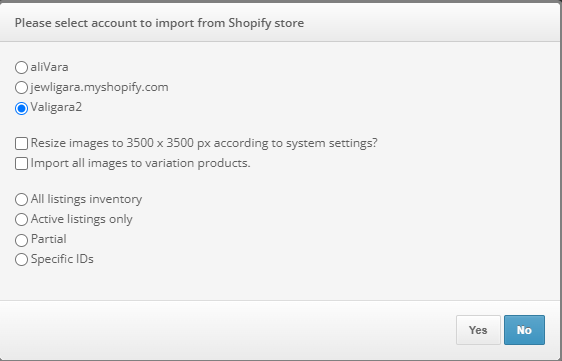
- In the import pop-up, set the import settings:
- Select the Shopify store.
- Resize images to 3500 x 3500 px according to system settings
- If checked, images are resized during the import according to Global Settings -> Image Settings.
- If unchecked, images are imported in the original size.
- Import all images to variation products
- If checked, Valigara imports all other images to the variation product after the associated variation image, if there is one.
- If unchecked, Valigara imports only the associated variation image to the variation product, if there is one.
- Select the import mode:
- All listings inventory - import all Shopify listings
- Active listings only - import only active Shopify listings
- Partial - enter the number of listings to import. Listings are imported by Shopify ID, from lowest to highest
- Specific IDs - enter specific Shopify listing IDs to import. To import multiple listings, separate the IDs with commas
- Click Yes to start the import process.
Import
Once Valigara finishes fetching information from Shopify listings, the Listings Import pop-up appears.
If you do not want to run the import immediately, close the pop-up. You can start the import later from the relevant Shopify
Listings Fetching batch on the Batches page. To start the import from the batch page, click Continue with Import.
During the Fetching stage, Valigara checks Shopify listings for variations and attributes. During the Import stage, select the Valigara fields for the fetched attributes and define how variations should be created.
In the Import specifics mappings pop-up, configure the following:
Duplicate SKUs
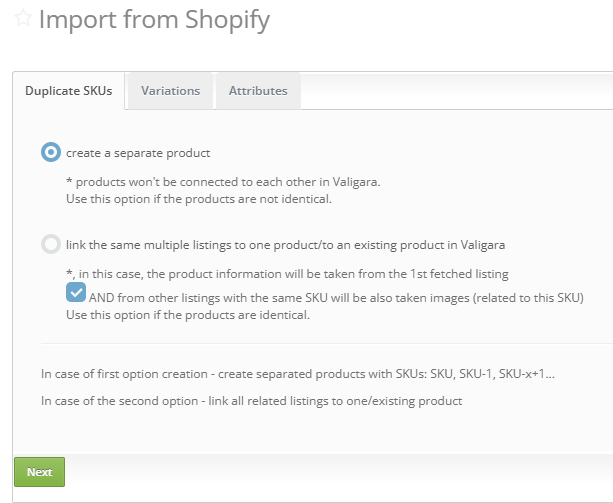
- Create a separate product - creates separate products that are not connected to each other in Valigara. Use this option when the products are not identical.
- Link the same multiple listings to one product / to an existing product in Valigara - links the listings to one Valigara product. Product information is taken from the first fetched listing.
- Import images from other listings with the same SKU - when checked, images from other listings with the same SKU are also imported. Use this option when the products are identical.
When the first option is selected, Valigara creates separate products with SKUs such as SKU, SKU-1, SKU-x+1.
When the second option is selected, all related listings are linked to one product or to an existing product.
Variations
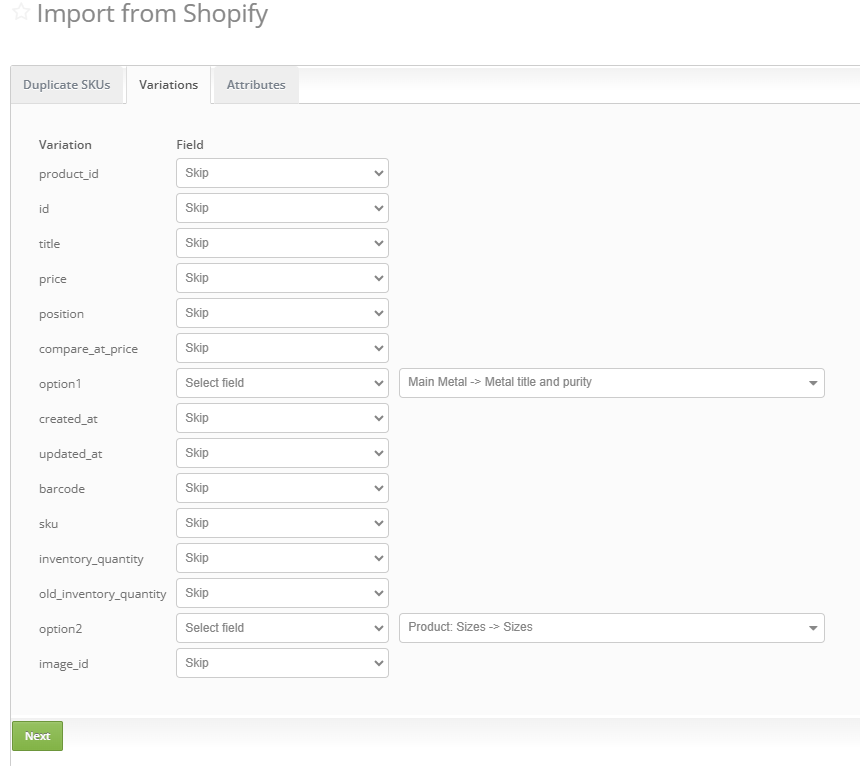
Use the Variations settings when the Shopify listing includes product options or variants.
Example: A listing has 2 variations: option1, showing available gold colors and purities, and option2, showing available ring sizes.
- For Shopify variation option1, choose Select field, then select Main Metal -> Metal purity and title from the Valigara fields list.
- For Shopify variation option2, choose Select field, then select Product: Sizes -> Sizes from the Valigara fields list.
The import creates:
- Separate products with their own SKUs in the Valigara Catalog for product-based variations, such as metals, metal purities, or main gemstones
- Variation fields with their own SKUs for field-based variations, such as size, length, box color, or box type
Attributes
The Attributes tab defines how Shopify listing attributes are stored in Valigara products.
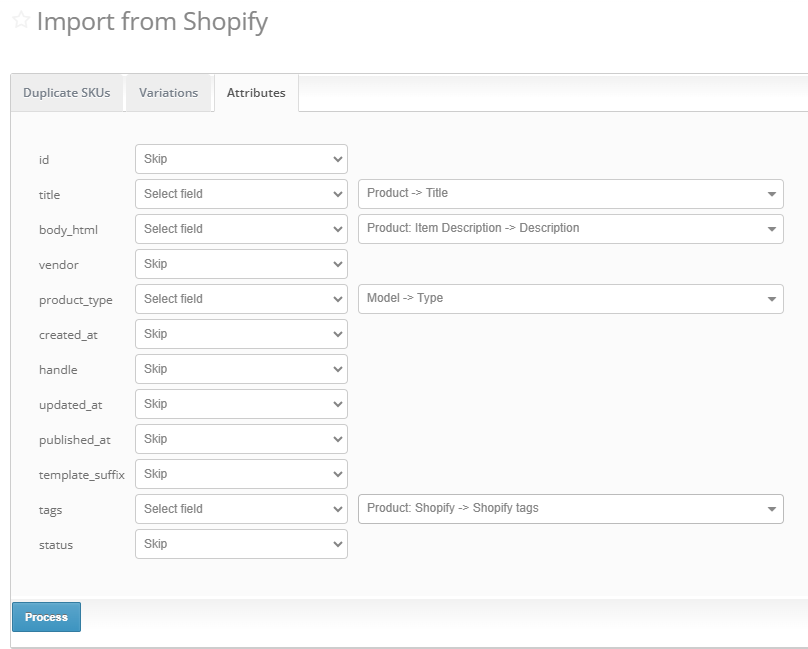
The attributes can be saved to:
- Existing Valigara field - select an existing field from the drop-down
- New Field - create a new field under the Shopify Import set in Additional Fields
- Skip Field - ignore the data from the specific attribute
Run the import
- Click the Process button.
- Open the batch from the pop-up.
- Click Show products to see the created products in the import batch.
Success section
- Shows successfully imported single and variation products
- Click a specific item to open the product Edit page
- Click
 to see imported products on the Products page
Errors section
- Shows the list of products that failed to import, with specific error messages
 |
|
Was this article helpful?
That’s Great!
Thank you for your feedback
Sorry! We couldn't be helpful
Thank you for your feedback
Feedback sent
We appreciate your effort and will try to fix the article
