Box Images, also known as Promotional images, provide additional commercial or marketing information that is not directly related to the product itself. These images help improve the buyer experience, increase trust, and add extra value to the purchase.
Unlike standard product images, Box Images are designed to support branding, promotions and seasonal campaigns.
Examples include:
Jewelry box images
Promotional flyers or special offer inserts
Jewelry appraisal or certificate examples (non-product-specific certificates)
Ring sizing charts
Jewelry care instructions
Brand and value proposition infographics
Branded packaging or showroom photos
Seasonal or holiday-themed images
Because marketing campaigns and promotions change over time, Box Images may vary between Channels, Seasons or Occasions. For example, a Christmas-themed promotional image may differ from one used for Valentine’s Day or engagement-related products.
Valigara manages Box Images separately from regular product images, making it easy to update and maintain the most relevant promotional content across your catalog throughout the year.
TABLE OF CONTENTS
- Adding Box Images
- Removing Box Images
- Box Image Visibility
- Replacing Box Images in Bulk
- Setting Box Image Position on Channel
Adding Box Images
To add box images:
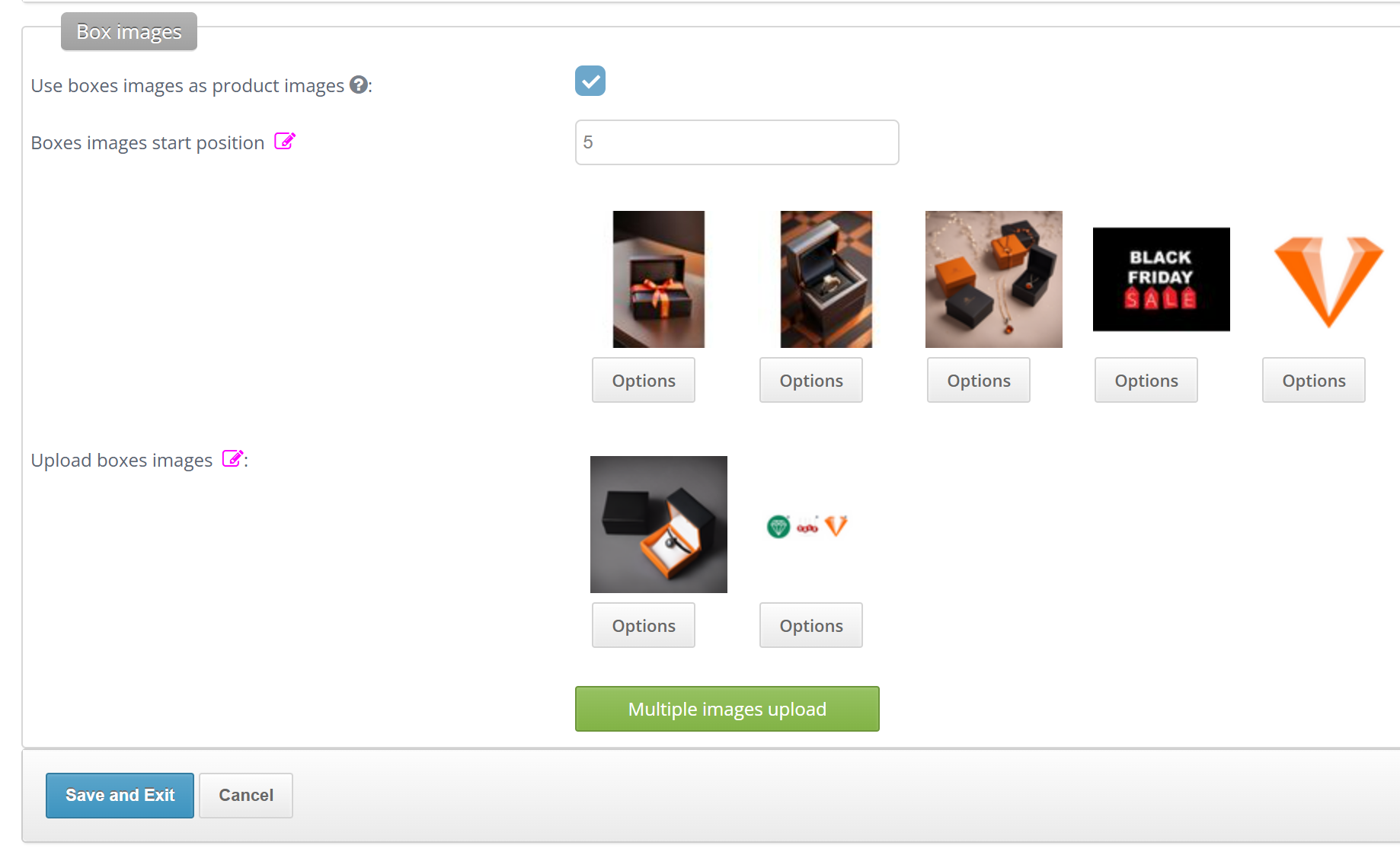
- Go to Global Settings → Box Images
- Use boxes images as product images - if checked, box images are posted together with product images to channels
- Boxes images start position - Valigara pushes box images in the selected position between the product images. This can be overridden in the Commercial Settings of each specific channel.
- if you need to set several positions for box images, then do it with the comma (f.i. 3, 5, 7)
- in case a product has less images than the box start position, box image will appear last, after product images
- Upload boxes images - select and upload one or more box image files
- Click "Save and Exit" to apply the changes
Adding Box Images to Products in Bulk
To add images to products:
Go to Catalog → Product Images
Select the relevant products
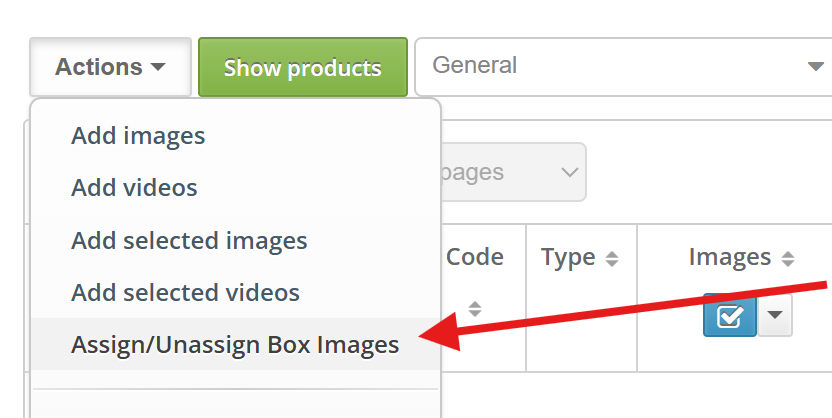
Click System Actions → Assign Box Images
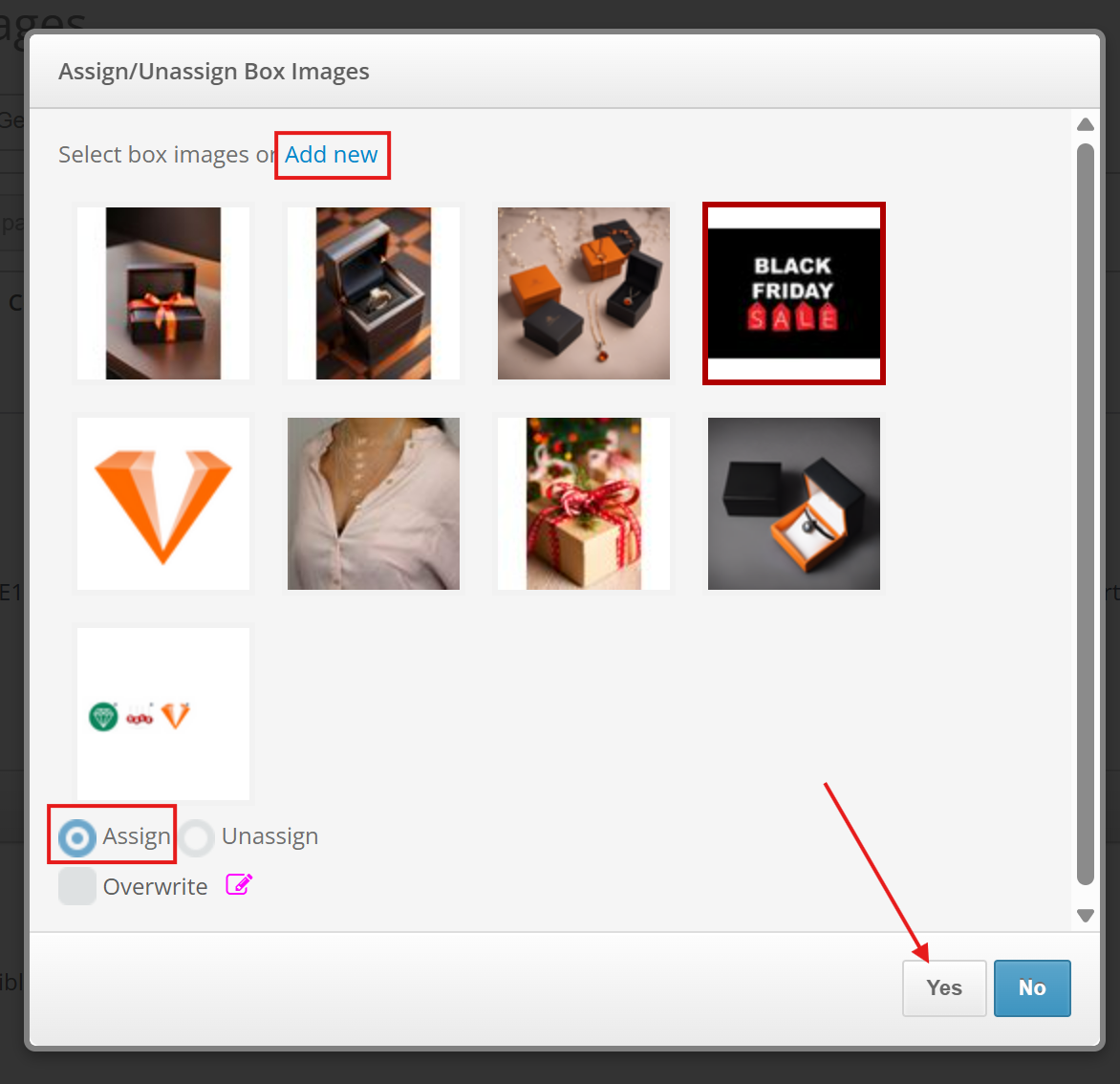
In the “Assign Box Images” Popup you can now configure the Box Images assignment.
Available Options:
Select one or multiple existing Box Images
Click Add New to upload a new promotional image to the account
Enable Overwrite if you want to replace all existing Box Images with the newly selected ones. Click Yes to assign the selected Box Images to the chosen products.
.
Adding Box Images in the Product page
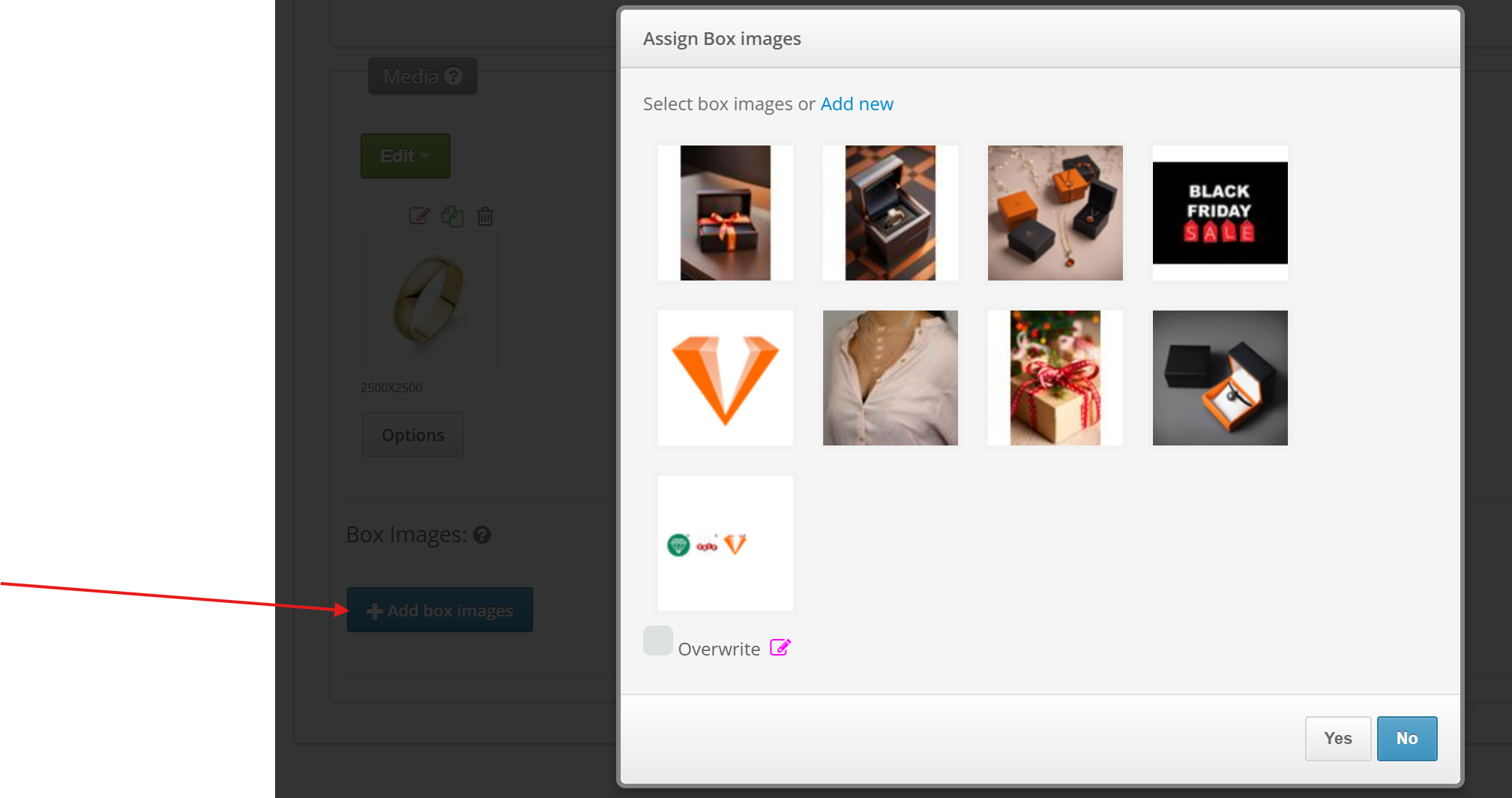
You can also add Box Images straight to the Product. Go to the Media section and click "Add box Images".
Removing Box Images
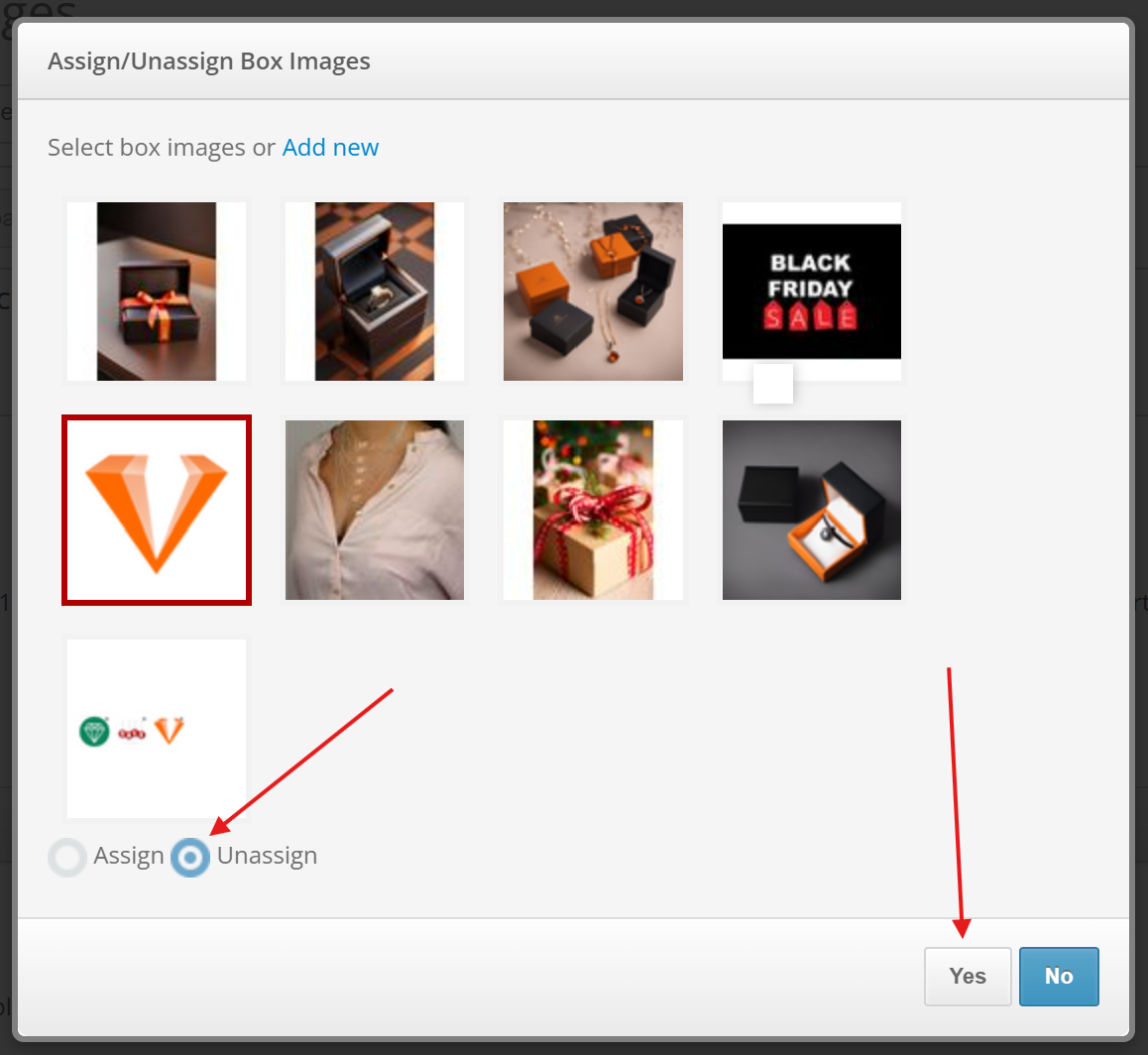
Specific Box Images from a Product
To remove only selected promotional images:
Select the relevant products
Choose the Box Images you want to remove
Select Unassign Mode
Click Yes
Only the selected promotional images will be removed.
All Box Images from Products
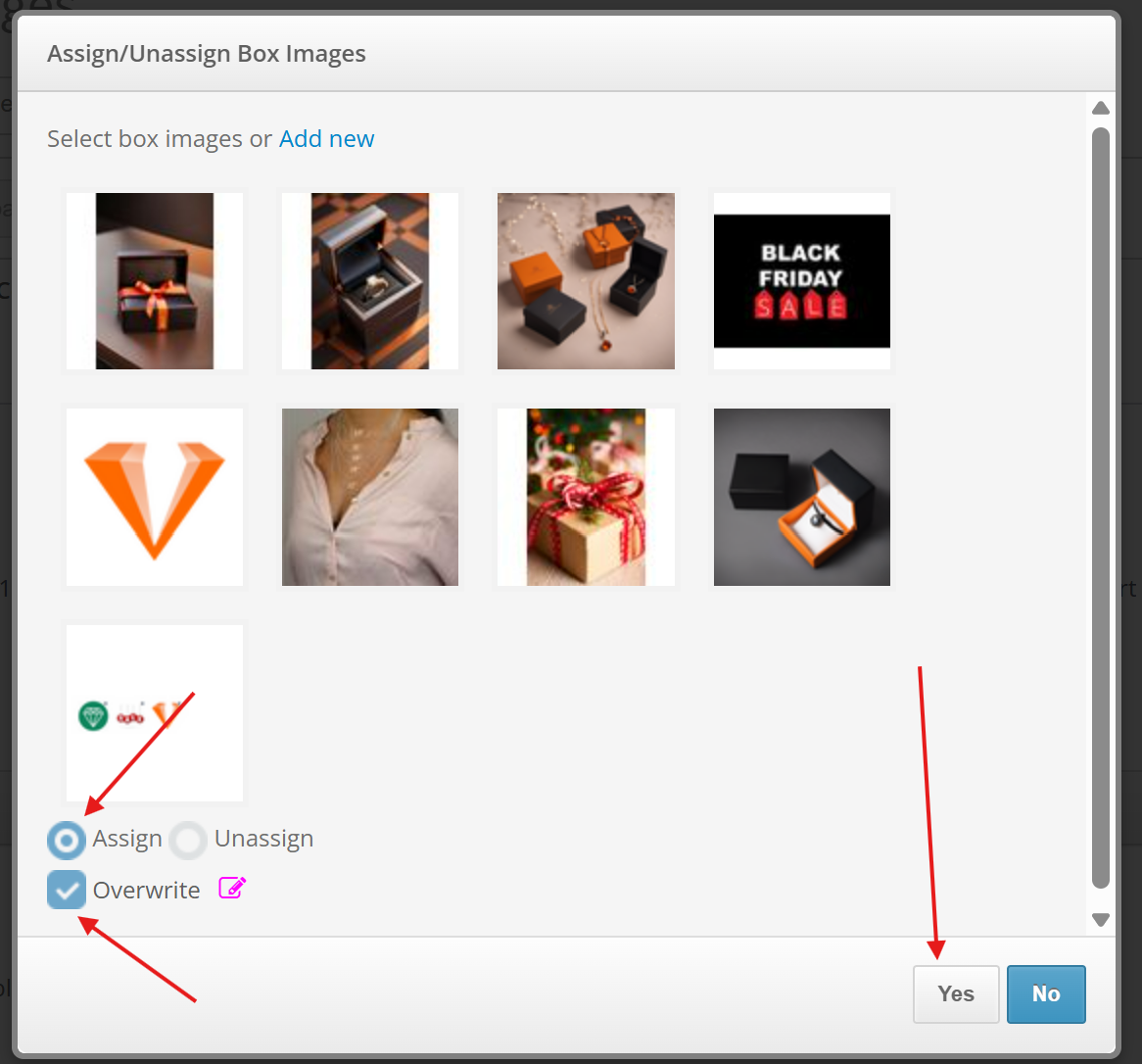
You can remove all promotional images from a product without selecting them:
Open Assign Box Images
Leave the image selection empty
Enable the Overwrite option
Click Yes
This will remove all currently assigned Box Images from the selected products.
Deleting from the Account
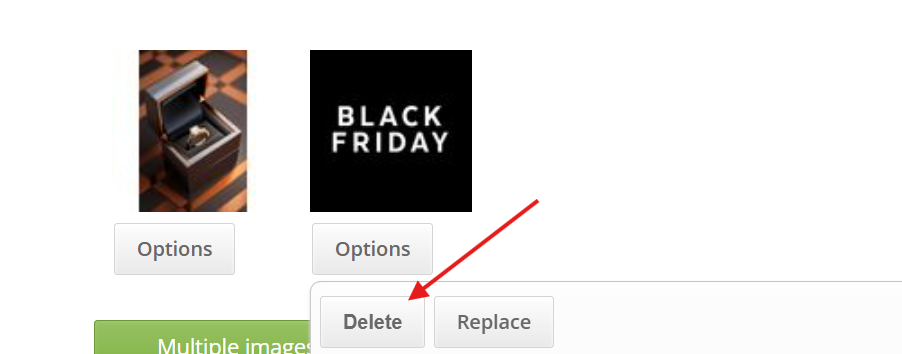
If you want to delete Box Image from the account:
Go to Global Settings → Box Images
Click Options → Delete
Box Image Visibility
You can control which promotional images are displayed on specific accounts and sales channels.
Global Settings
To configure global visibility settings:
Go to Global Settings → Box Images → Options
- Show in channels - check the channels the specific box image will automatically apply to
- Show on accounts - when using multiple stores (f.i. 2 eBay stores), check the specific accounts to use the box image in
Product-Level Override
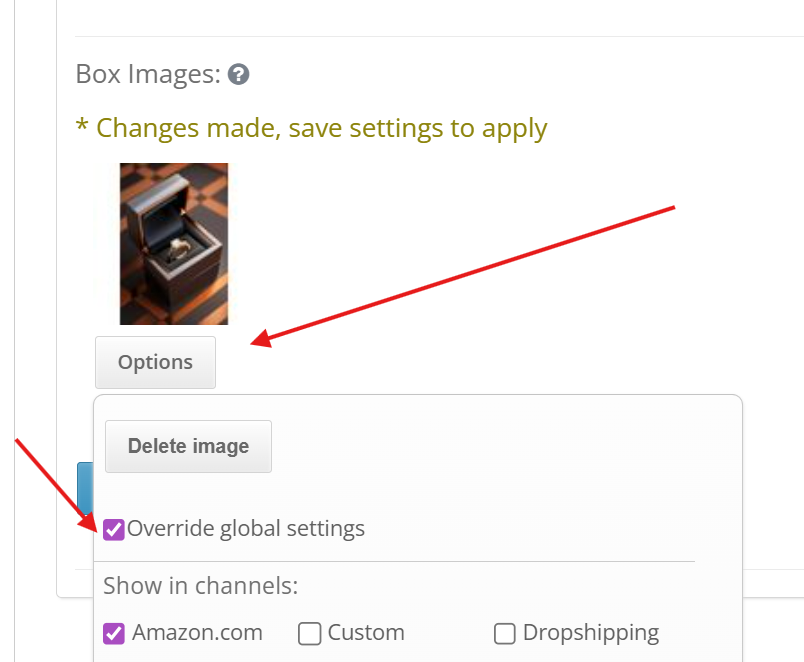
If a specific product requires different visibility than the global configuration:
In the product, go to the Media section
Click Options below the specific image
Enable Override Global Settings
Configure the visibility settings as needed
This allows you to customize Box Image behavior for individual products.
Multiple products Override
Go to Catalog → Product Images
Select the relevant products
- Choose the appropriate account or sales channel using the Channel Selector
Choose a specific sales channel
Add the Box image you want.
Replacing Box Images in Bulk
If you need to replace an existing promotional image with a new one across multiple products, channels, or accounts:
Go to Global Settings → Media → Box Images
Click Options → Replace
Select the image to replace and the new image
Save the changes
This feature allows quick bulk updates without manually editing individual products.
Setting Box Image Position on Channel
You can include more than 1 promotional image per product. These images can be displayed together (position 3, 4) or separately (position 3, 8) in the product gallery, according to channel and product specifics.
To configure the display position of Box Images for a specific account:
Go to Channels: Account Settings → Commercial
Adjust the Box Image position settings as needed
For multiple images, enter the positions in comma-separated format (3, 8). In that case the first image will be on 3rd position and the second will be on 8th.
This controls where promotional images appear within the product image gallery for that account.
 | For the best customer experience, keep promotional images:
Well-managed Box Images can improve product presentation, strengthen brand identity, and help increase buyer confidence. |
Was this article helpful?
That’s Great!
Thank you for your feedback
Sorry! We couldn't be helpful
Thank you for your feedback
Feedback sent
We appreciate your effort and will try to fix the article