Watermarks in Valigara allow you to automatically protect and brand your product images without creating additional image files. The system applies watermarks dynamically (“on the fly”), which means the same product image can appear:
with different watermarks on different sales channels
with or without a watermark simultaneously
without permanently modifying the original image
This gives you full flexibility when managing branding across marketplaces and stores.
TABLE OF CONTENTS
How Watermarks Work
Watermarks in Valigara can be applied on 3 different levels:
- Globally — for all uploaded images - Automatically apply the same watermark to every image uploaded into the system.
- Per sales channel - Use different watermark settings depending on the marketplace or store.
- Manually — for selected images - Apply or replace watermarks only on chosen product images.
Before you begin, keep in mind:
Only one watermark can be applied to an image at a time.
You can define the watermark position on the image.
Watermarks are displayed in the original size they were uploaded.
For best results, prepare watermark images proportionally to your product photo dimensions.
Apply Watermark to ALL Images in Valigara
Use this option if you want every newly uploaded image to automatically receive the same watermark.
Go to Global Settings → Image Settings
In the Watermarks section, set:
“Set global watermark” → Yes
Select:
watermark position,
watermark image.
Click Save settings
Once enabled, all newly uploaded images will automatically display the selected watermark.

Apply Watermarks to SELECTED Product Images
This option is useful when you want to watermark only specific products or only images assigned to a particular sales channel.
- Open Product Images. Go to: Catalog → Product images
- Select the Sales Channel. Choose the channel where the watermark should be applied.
- Important: If you select General, the watermark will be visible on all channels.
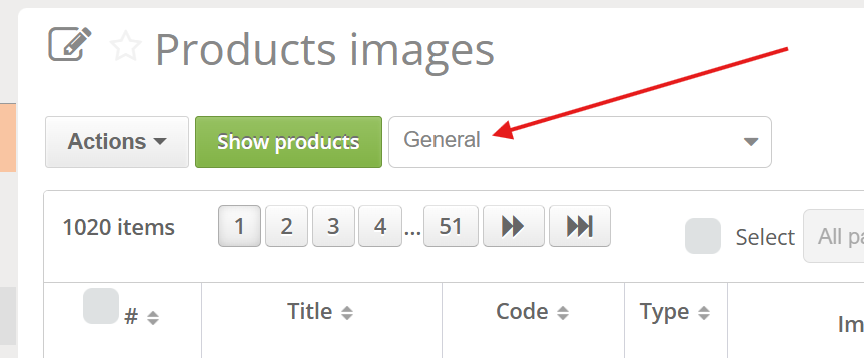
- Important: If you select General, the watermark will be visible on all channels.
- Select Images. Mark the images you want to update.
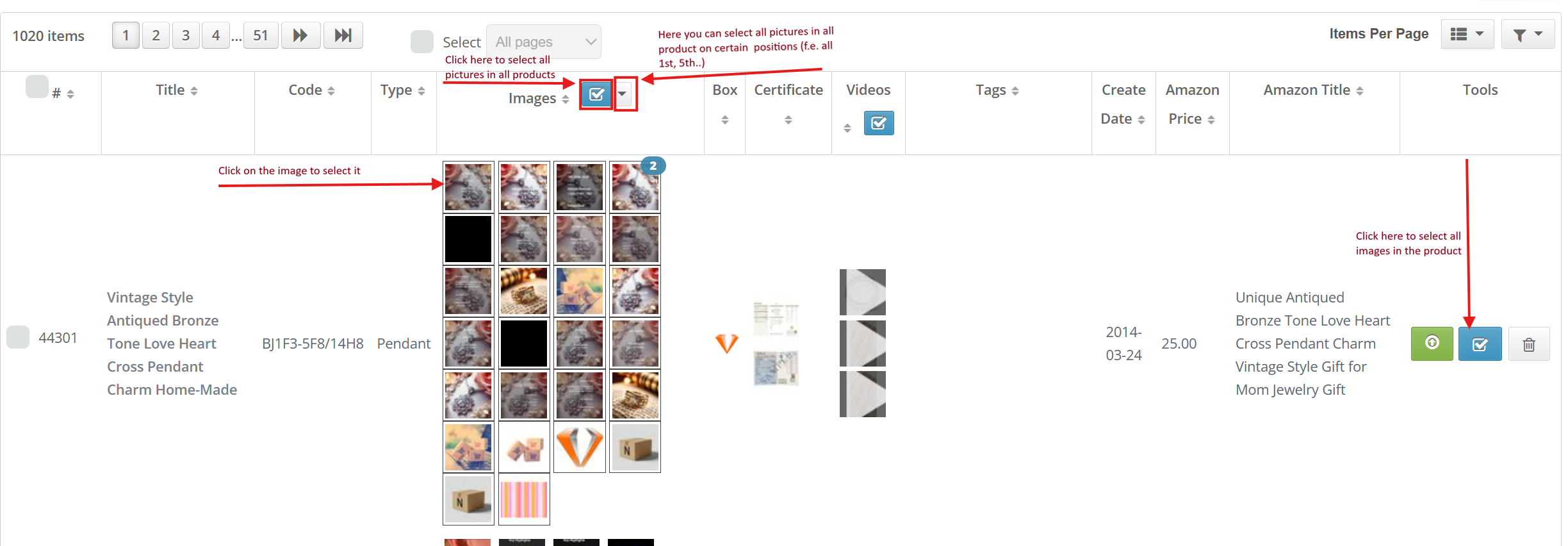
- Open Watermark Actions.
- Go to: System Actions → Watermarks
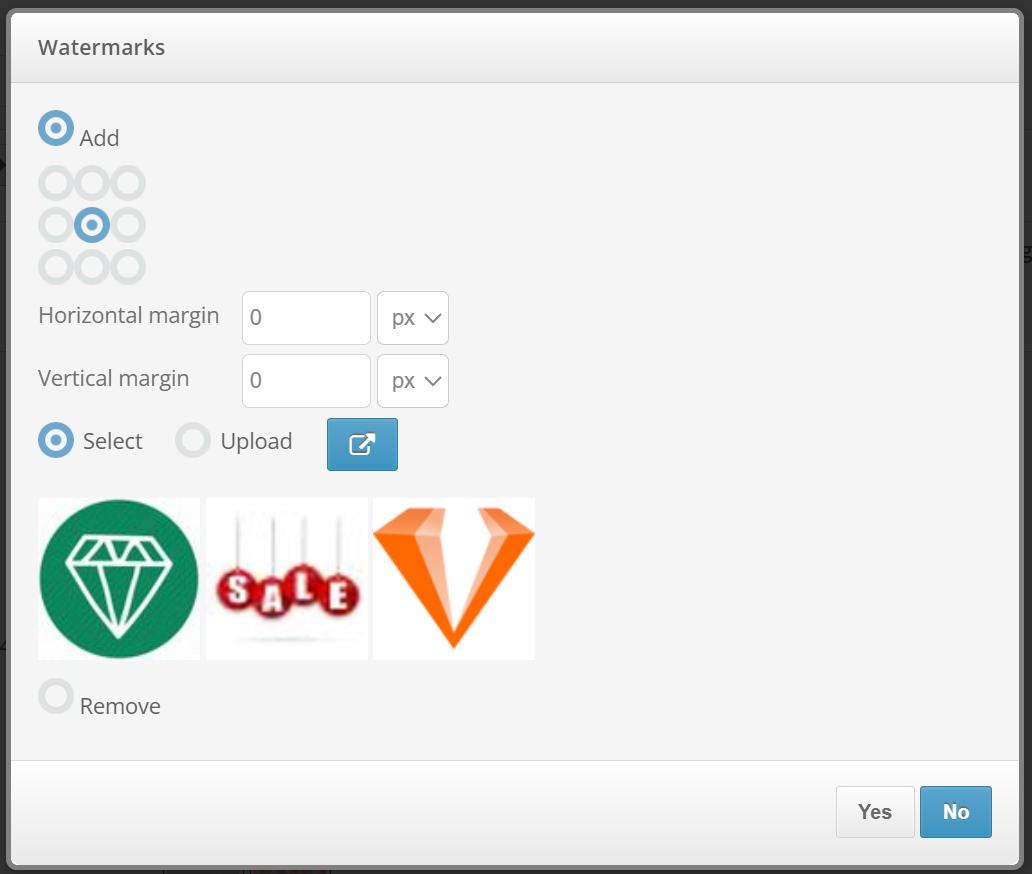
- Choose: Add
- Configure Watermark Settings.
- You can now define:
- watermark position,
- watermark image,
- custom margins from the selected position.
- Margin gives you more precise control over watermark placement.It can be set:
- in pixels,
- or in percentages.
- You can now define:
- Choose Watermark Source:
- select an existing watermark saved in: Global Settings → Image Settings
- or upload a completely new watermark.
- Click Yes to start the operation
Removing Watermarks from Products
To remove an existing watermark:
Select the relevant images
Go to System Actions → Watermarks
Choose Remove
Click Yes
The watermark will be removed immediately.
Replacing Existing Watermarks
To change a watermark:
Repeat the same steps used for adding a new watermark
Upload or select a different watermark
The old watermark will automatically be replaced with the new one.
Managing the Watermark Library
Valigara allows you to store multiple watermark files and reuse them anytime.
Add New Watermarks
Go to Global Settings → Image Settings
Open the Watermarks tab
Use Multiple images upload
Save settings
Remove Unused Watermarks
Go to Global Settings → Image Settings
Open the Watermarks tab
Click X on the watermark you want to delete
Save settings

Apply Watermarks on the SPECIFIC Sales Channel
Different marketplaces often require different branding.
Valigara allows you to configure watermark behavior individually for each connected account.
- Go to Channel → Account Settings → Commercial Settings
- Then open: Images → Watermark Options
Available Options
- Default - uses settings inherited from: Global Settings → Image Settings
- Hide Watermark - disables watermark display for this specific channel.
- Set Watermark for This Account - Allows you to configure a completely separate watermark for the selected sales channel. You can define:
- watermark position,
- watermark image,
- individual branding settings.
Finally, click Save settings.

Best Practices
To keep your product images professional and readable:
Use transparent PNG files for watermarks
Avoid oversized logos
Keep margins consistent across channels
Use different watermarks for B2B and retail channels if needed
Was this article helpful?
That’s Great!
Thank you for your feedback
Sorry! We couldn't be helpful
Thank you for your feedback
Feedback sent
We appreciate your effort and will try to fix the article