Automatic Emails allow Valigara to send emails automatically based on predefined settings, order or client data, and selected conditions.
Use Automatic Emails to automate customer communication, send relevant order updates, and create scheduled product-based emails, such as monthly updates with new products added to the catalog.
Use cases
Automatic Emails can be used for different types of communication:
- Order-related emails - send emails after specific order actions, such as a new order, payment, shipment, or order status change.
- Customer service emails - keep buyers updated automatically and reduce manual communication.
- Conditional emails - send different emails for different types of orders, channels, product types, price ranges, or customer groups.
- Promotions - send clients a selected list of products, for example new arrivals, monthly catalog updates, best sellers, or seasonal products.
- Recurring emails - send the same Automatic Email regularly using the Repeat option.
Create an Automatic Email
- Go to Automations -> Automatic Emails.
- Click Add to create a new Automatic Email, or open an existing one to edit it.
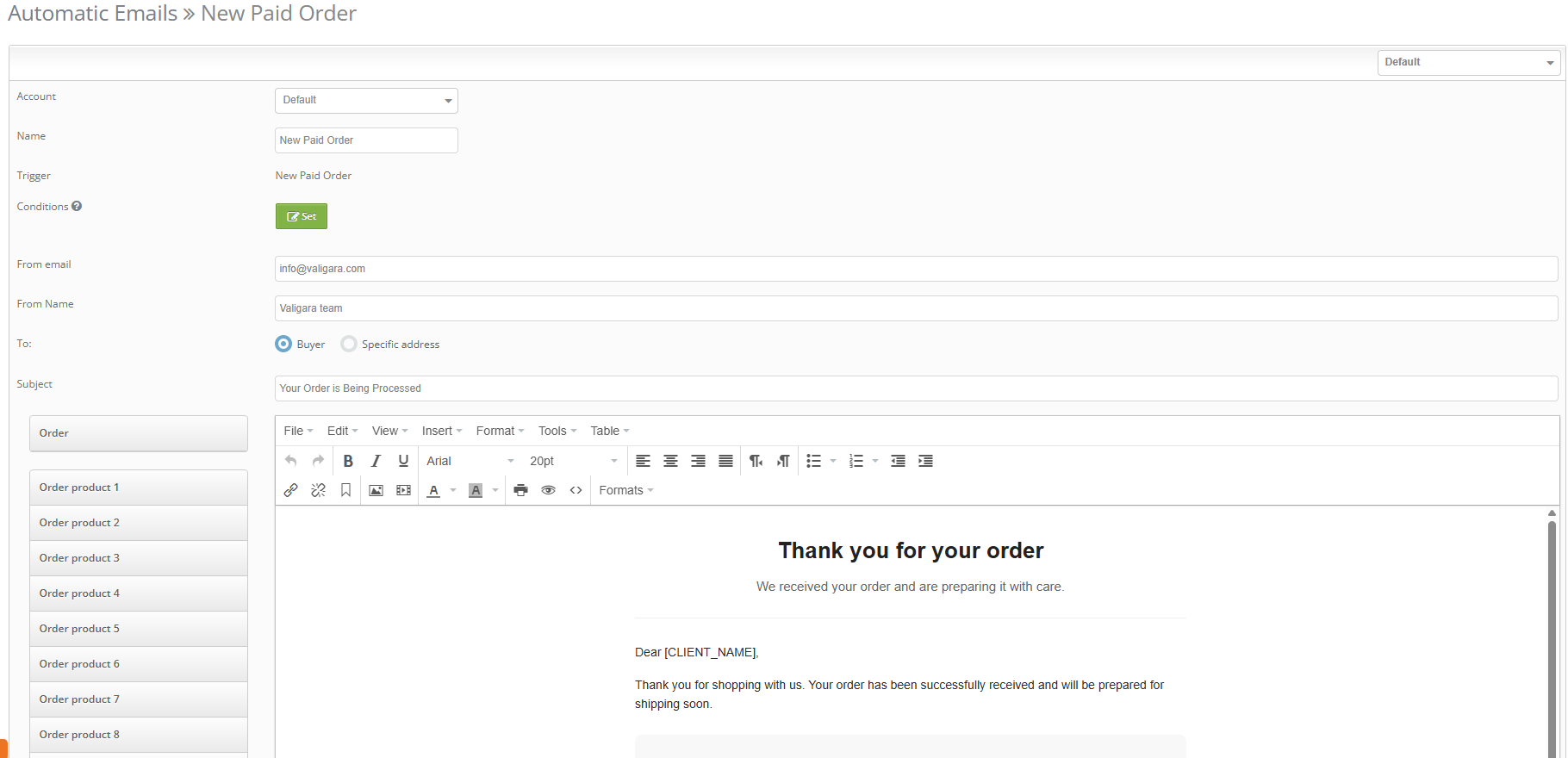
- Fill in the Automatic Email fields:
- Account - the sales account related to the order
- Name - internal title that helps you identify the Automatic Email
- From email - sender email address
- From Name - sender name displayed to the recipient
- To:
- Buyer - send the email to the order buyer
- Specific address - send the email to a defined email address
- Subject - the subject of the email sent to the recipient
- Conditions - define if the email should be sent only in specific cases
- Message - the email body
- Include product, order, or client fields. Select them from the left menu.
- The message can include HTML and images to create a custom layout.
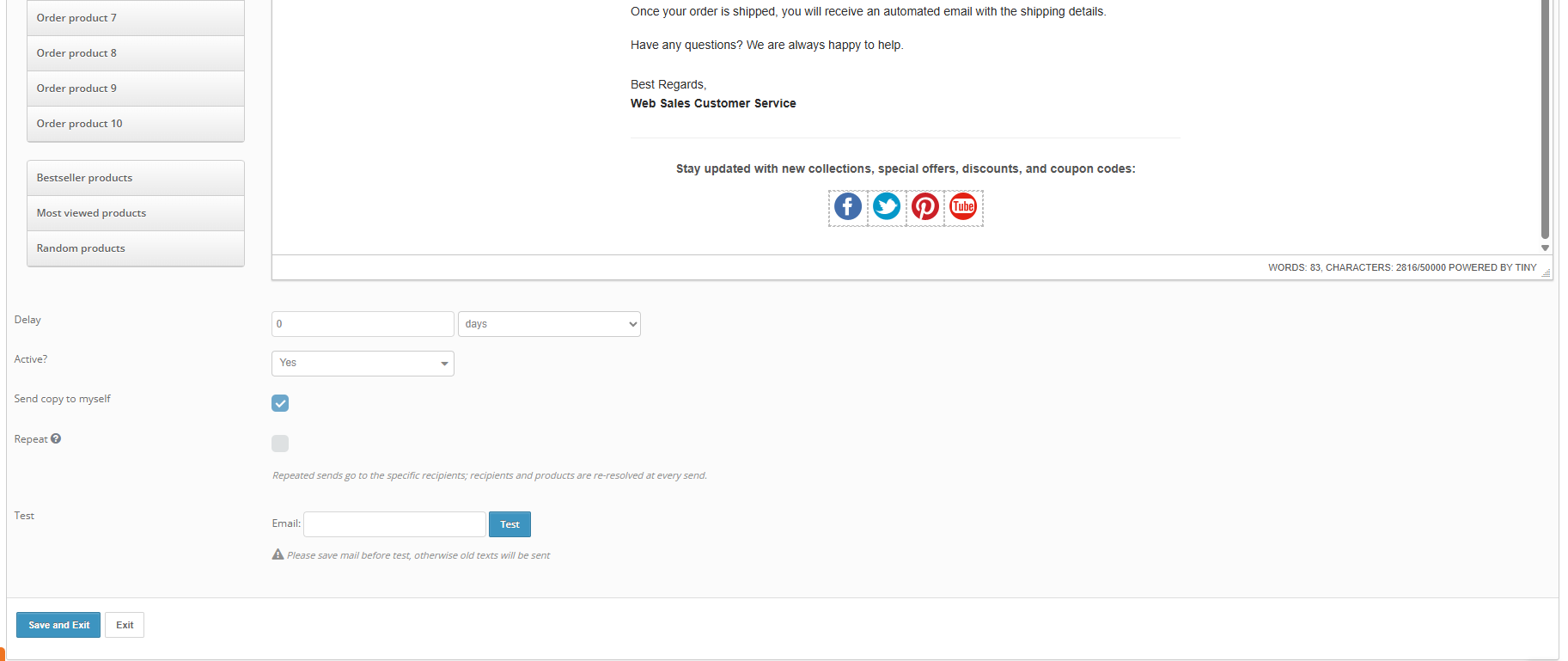
- Delay -define when the email should be sent after it is triggered and the conditions are met.
- Set the delay in days, hours, or minutes.
- Example: send a follow-up email 7 days after the order is delivered.
- Active?
- No - the Automatic Email is inactive and will not be triggered.
- Yes - the Automatic Email is active and can send emails.
- Send copy to myself - send a copy of the email to yourself for better control.
- Repeat- enable it if the email should be sent regularly.
- Every - defines the repeat interval
- Times - defines how many times the Automatic Email should be sent
- Click Save and Exit.
Conditions
Conditions define whether the Automatic Email should be sent in a specific case.
Use conditions when different emails should be sent for different orders, clients, products, sales channels, or product parameters.
Examples:
- Order price is higher than 50
- Channel is eBay, Etsy, Amazon, Shopify, or another sales channel
- Product type is Earrings, Rings, Necklaces, etc.
- Main metal is White Gold
- The order includes more than 2 products
To add a condition:
- Open the relevant Automatic Email edit page.
- Go to Condition.
- Click Add.
- Select the condition field, operator, and value.
- Save the Automatic Email.
Repeat
Use Repeat when the Automatic Email should be sent regularly, for example once a month.
Repeat is useful for scheduled communication, such as:
- Monthly new products added to the catalog
- Monthly best sellers
- Seasonal product updates
- Regular reminders or follow-up emails
Important: Recipients and email content are generated at the moment of each sending. This means that repeated emails may include different recipients and different products each time, depending on the current conditions and product selection.
Multiple Products
Automatic Emails can include multiple products in the email content.
Use this option to send product lists, such as new arrivals, selected recommendations, best sellers, or products matching a specific dynamic filter.
Product selector
To define which products should be included in the email, use Product selector from the left menu of the Automatic Email edit page.
The standard product selector opens with two selection modes:
- Static - select a fixed list of products. The same selected products are included in the email.
- Dynamic - define product search/filter rules. Products are selected when the email is sent, according to the current matching products.
For example, to send monthly new products added to the catalog, use a dynamic product selection that matches products created or added during the relevant period.
Product fields
Use the Product fields selector to choose which product information should be included in the email.
Examples of product fields that can be added:
- Product title
- SKU / Catalog Code
- Price
- Main image
- Product URL
- Metal, gemstone, size, collection, or other product parameters
Multiple product block in the email template
To display multiple products inside the email, add a multiple product block to the email template.
The product list should be placed between the {Start} and {Stop} flags. The content between these flags is repeated for each product included in the email.
Example:
{Start}
Product title: #Product_title#
SKU: #Catalog_code#
Price: #Price#
Product URL: #Product_url#
{Stop}
When the email is sent, Valigara repeats the block for each product selected by the Product selector.
 |
|
Was this article helpful?
That’s Great!
Thank you for your feedback
Sorry! We couldn't be helpful
Thank you for your feedback
Feedback sent
We appreciate your effort and will try to fix the article