Valigara provides a flexible import/update interface for migrating your products data from external spreadsheets. Easily import your data from MS Excel, OpenOffice Calc, Dropbox, Google Sheets etc.
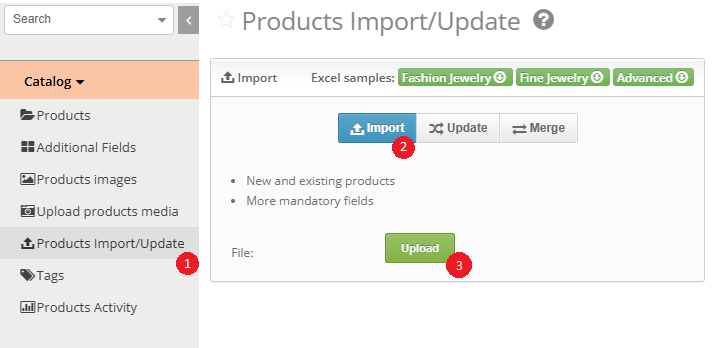
To import your data feed into Valigara, open Catalog -> Products Import/Update. Follow the next steps:
1. Select operation
- Import - Create new products. When using this form, it is necessary to provide the minimal required information about your jewelry.
- Update - Make adjustments in existing products. For example, adding "Secondary color" to your gemstones. The update file can include any partial information about your products, f.i. pricing only, commercial titles only, Etsy keywords, etc.
- Merge - Add new products and overwrite the existing ones.
Mandatory fields
- Import/Merge (new products): Catalog code (SKU), Product Title, Model Code, Model Type, Model Title.
- Update (existing products): Catalog code (SKU) or Valigara ID
Advanced tools
Depending on the selected upload mode, the process can perform additional actions with the destination products:
- Overwrite images - available for "Update" and "Merge" operations. Overwrite existing product images
- Overwrite products - available for "Merge" operation. Overwrite the current data in existing products
- Update listings - available for "Update" operation for products active on channels
- Skip header rows - skips sheet first X lines
- Support Multiline fields - use it in case where the information about one item is spread into multiple rows.
2. Define Import Format
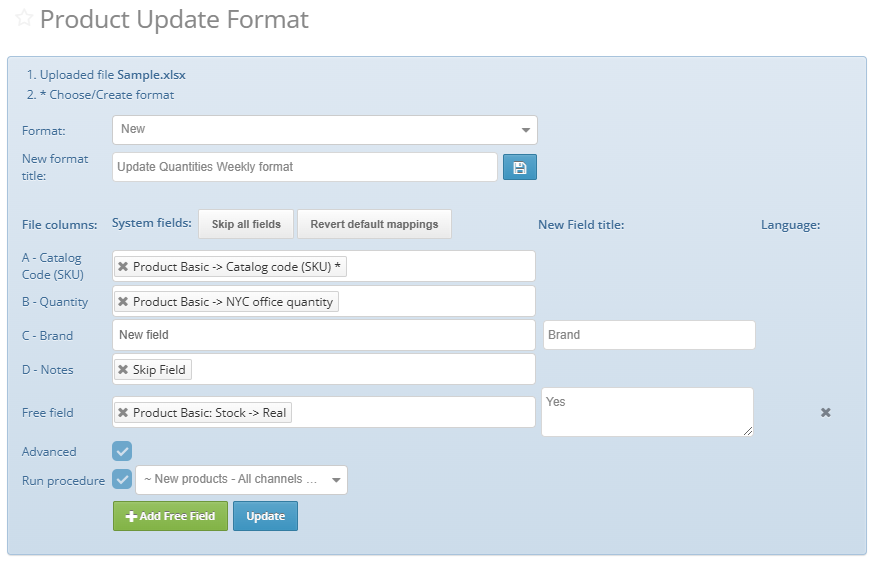
- To start, create a new format or use an existing one.
- Map the import fields
- Existing field- select a Valigara field(s) from the drop-down
- Already selected fields are highlighted in green in the drop-down menu
- New Field- define the "New Field Name"
- This option creates the new field/s under "Import" set in Additional fields
- The field Title, Type, Set, Width and Alias can be edited after the field is created
- Skip Field - the data in the specific column will be ignored
- Add Free Fields - select a Valigara field(s) from the drop-down and define a value that will be added to all products from the feed
- Existing field- select a Valigara field(s) from the drop-down
- Enable Advanced mode to run a Procedure for uploaded products.
3. Click "Import" and check the results in the Batch.
 | IMPORTANT: Before importing the file, please check it contains values only. Importing formatted data and formulas is not supported.
|
Was this article helpful?
That’s Great!
Thank you for your feedback
Sorry! We couldn't be helpful
Thank you for your feedback
Feedback sent
We appreciate your effort and will try to fix the article