Valigara allows exporting products to Excel. Use Products Export to create product reports, share catalog data with external systems, update data in bulk, or prepare custom files for inventory, accounting, ERP, or internal analysis.
Products can be exported using a new one-time field selection or a saved Export Format. Export Formats work similarly to Import Formats: once the field structure is defined and saved, it can be reused for future exports with the same Excel column structure.
- Export products to Excel
- Create or use an Export Format
- Select export fields
- Download the exported file
Export products to Excel
- Go to the Catalog page.
- Select the products you want to export.
- Use search and filters to select a specific group of products, for example by product type, collection, stock, sales channel, status, or other product data.
- Go to Actions -> Export to Excel.
Create or use an Export Format
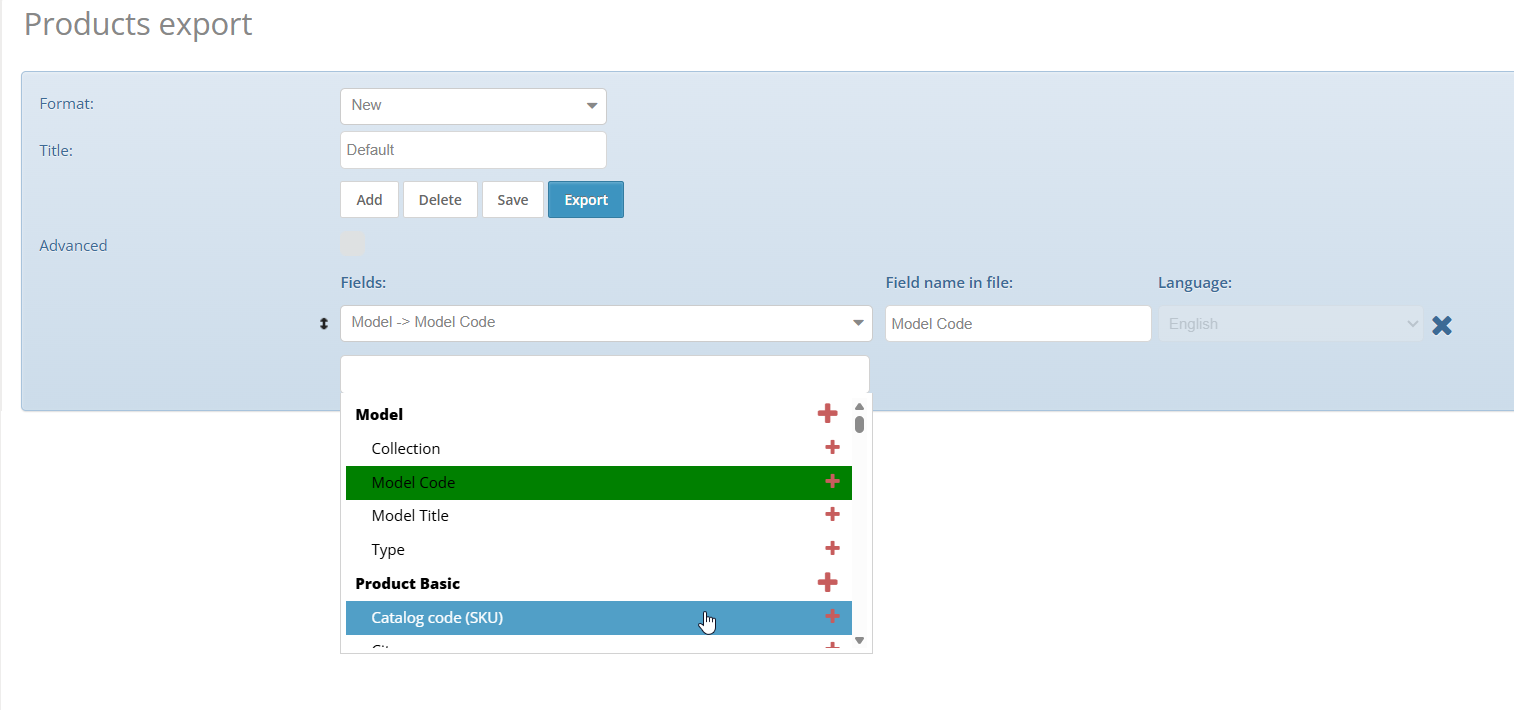
On the Products Export page, choose an existing export format or create a new one.
An Export Format defines which product fields will be exported and how they will appear in the Excel file. This is useful when the same file structure is needed repeatedly, for example for supplier files, ERP synchronization, inventory reports, price updates, marketplace data checks, or catalog analysis.
- Select how to define the format:
- Existing format - use a previously saved export structure.
- New - create a one-time export or build a new export structure.
- Save the format if you want to reuse the same export structure in the future.
Select export fields
- Choose which fields should be exported.
- Fine-tune the file structure:
- Field name in file - rename the column title in the Excel sheet, or keep the preset field name.
- Language - select the language for fields that support multiple languages.
- Use green arrows
 to change the order of the fields in the export file.
- Click Export to start the export process.
Download the exported file
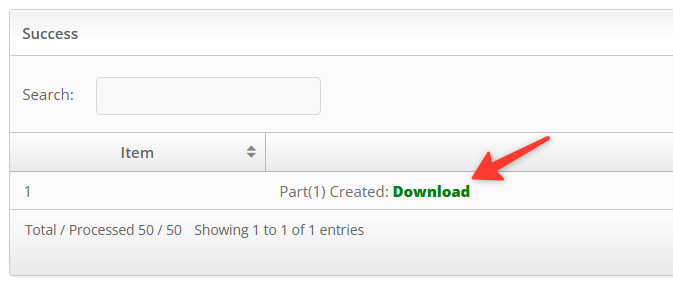
- After the export starts, open the related batch.
- Click the Download link to download or open the generated Excel file.
 |
|
Was this article helpful?
That’s Great!
Thank you for your feedback
Sorry! We couldn't be helpful
Thank you for your feedback
Feedback sent
We appreciate your effort and will try to fix the article