The Commercial settings of the Amazon account define how your business operates on Amazon.
- go to Channels -> Amazon Settings
- enter account settings -> Commercial Settings tab
Account Settings
Shipping Labels Information
Stock settings
Account Settings
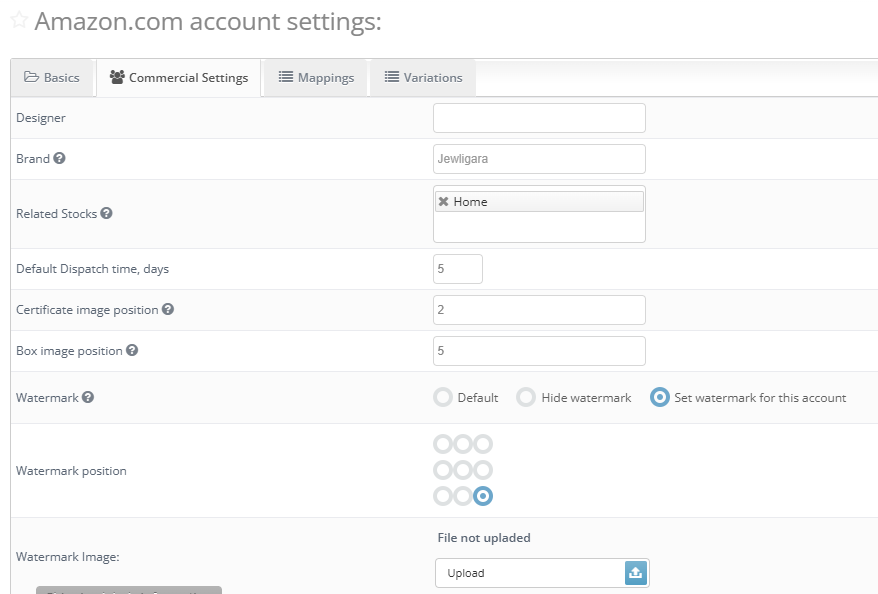
- Designer - Specify the designer name
- Brand - Your brand name. The default value is taken from My Account -> Commercial settings
- Related Stocks:
- Defines the relevant stocks (warehouses) for the channel
- Select the stock locations from the list and drag to set the priority
- The stock with higher priority (first in the list) will be used first for stock operations
- Default Dispatch time, days - the default value for required days to dispatch the item after purchase is confirmed
- Certificate images position - overwrite the default position for the certificate, in the specific account
- Box image position - overwrite the default position for the box image, in the specific account
- Watermark - define if to apply the watermark to all images uploaded into the channel
Shipping Labels Information
Company name, Company address, Country fields are used when printing Shipping Labels and other order-related paperwork.

Stock settings
- Max post qty - sets the maximum quantity that will be sent to the channel, when the item is posted with the "From Product"qty
- Example: if the product's related qty is 354, and the Max post qty is set to 5, the product will be posted with qty 5.
- Auto-refill listing qty - enable to automatically refill quantity displayed on Amazon when specific quantity is reached.
Once the listing's quantity goes to the Refill On value , Valigara automatically revises the quantity set in Refill Value
Refill On - set the quantity value that will trigger the refill action
Refill Value - set the refill value to display on Amazafter revise
Consider the real product qty - when checked, the auto-refill will run only when the actual product qty is above the Refill Value
 | Add more optimization and automation for Amazon: |
Was this article helpful?
That’s Great!
Thank you for your feedback
Sorry! We couldn't be helpful
Thank you for your feedback
Feedback sent
We appreciate your effort and will try to fix the article
