AI Images Enhancement helps you improve, retouch, and generate stronger product visuals directly in Valigara.
Jewelry is sold visually.
A cleaner background, sharper details, lifestyle scene, or on-model image can make the product easier to understand and more attractive to buyers. With AI Images Enhancement, you can create better product media without leaving Valigara, and apply the same visual direction to many images using AI Prompts.
Use this tool to improve existing product images, prepare marketplace-ready visuals, create promotional media, and generate lifestyle or on-model images based on your catalog images.
Use cases
AI Images Enhancement can be used for different media improvement and content creation tasks:
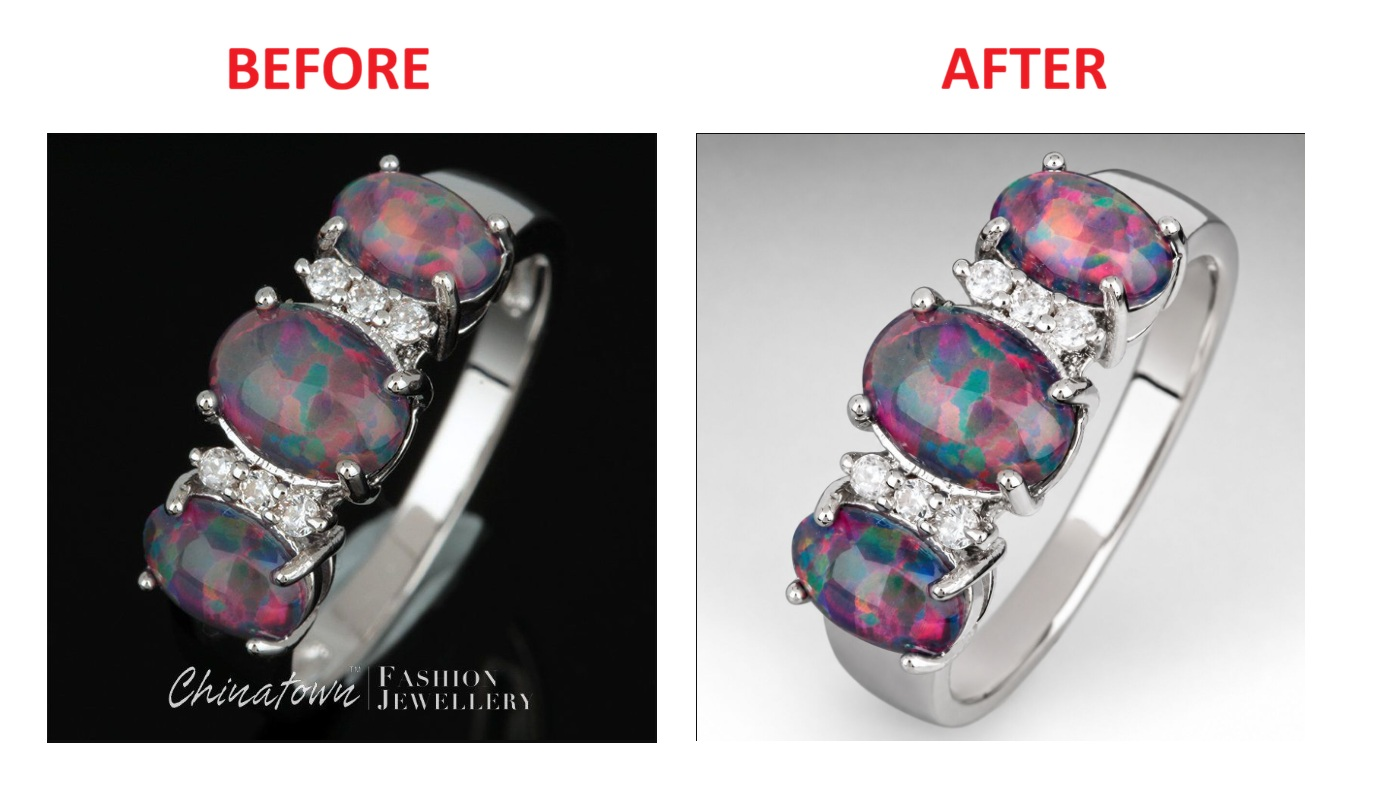
- Images retouch - improve clarity, sharpness, light, contrast, and overall product appearance.
- Background improvement - create cleaner, lighter, more consistent backgrounds for product images.
- Lifestyle-scene generation - place the product in a more attractive visual environment for promotions, websites, catalogs, and campaigns.
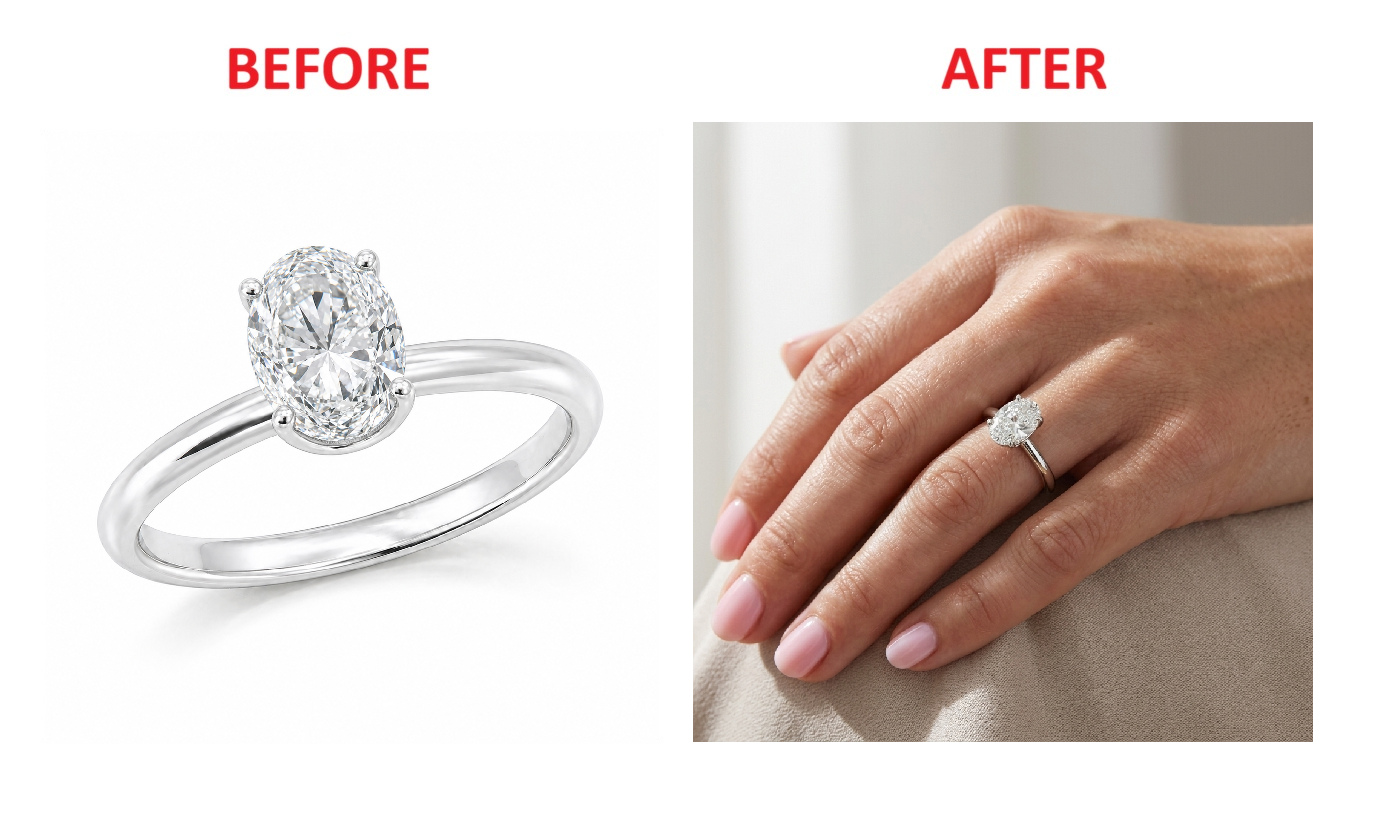
- On-model pictures generation - generate on-model style visuals to help buyers better understand the size, scale, and appearance of the jewelry.
How it works
AI Images Enhancement uses an existing product image and an AI Prompt. The prompt tells the AI model what should be created or improved.
For example, one prompt can be used to retouch images, another prompt can create a lifestyle scene, and another prompt can generate an on-model picture.
The same AI Prompt can be reused for multiple images, which makes it useful for bulk media work and consistent catalog presentation.
Run AI Images Enhancement
- Go to Catalog -> Product Images.
- Select the image or images you want to process.
- Go to Actions.
- Select the relevant AI Prompt.
- Choose how to save the result:
- Save as New - creates a new generated image and keeps the original image unchanged
- Replace existing - replaces the selected original image with the generated result
- Run the action.
- Review the generated images before using them on sales channels.
Create an AI Prompt for Images Enhancement
AI Prompts define how Valigara should process the selected image. To make a prompt available for AI Images Enhancement, mark it as an image enhancement prompt.
- Go to Automations -> AI Prompts.
- Click Add to create a new prompt, or open an existing prompt to edit it.
- Enter a clear internal prompt title.
- Write the prompt instructions.
- Select AI model supported for Images generation e.g gpt-image-2, nano banana 2
- Mark Use for Images Enhancement.
- Save the prompt.
After the prompt is saved and marked as Use for Images Enhancement, it can be selected from the AI Images Enhancement action on the Product Images page.
What to include in the prompt
A good AI image prompt should define both the expected result and the limits of what should not be changed.
- Goal - retouch image, improve background, create lifestyle scene, generate on-model picture, etc.
- Visual style - clean marketplace image, luxury jewelry style, soft lighting, white background, editorial look, etc.
- Product accuracy - keep the real product design, shape, metal color, gemstone color, stone count, and proportions unchanged.
- Restrictions - do not add or remove stones, do not change the metal, do not change gemstone colors, do not modify engravings or product details.
Tips
 |
|
Was this article helpful?
That’s Great!
Thank you for your feedback
Sorry! We couldn't be helpful
Thank you for your feedback
Feedback sent
We appreciate your effort and will try to fix the article